This article explains special options available for mapping multimedia data and geography data recorded in Collect for the following field types:
•Image
•MultiImage
•File
•Drawing
•Geography
The special handling described in this article is available when the Collect form template uses the following standard formats:
2.EDGE
3.EQEDD_v2
Basic Data Mapping Setup
1.In a form section that contains the multimedia field type (shown in the bulleted list above), select the Data Mapping button to open the Data Mapping window.
2.Select Create New Mapping.
3.Select the appropriate target section based on the type of data and the format used (see table below).
4.In the Type selection list, select File or Geography.
5.In the Source Field list, select the appropriate multimedia or geography field.
6.Click Save.
Target Table per Format |
Image, MultiImage, File, or Drawing |
Geography |
|---|---|---|
Collect Inspection |
File |
Geography |
EDGE |
Files_v1 |
Geography |
EQEDD_v2 |
Files_v2 |
Not Available |
Additional Options
Link Mapping To
Multimedia and geography data from a Collect form can be linked together to provide more benefit in EQuIS. These data mappings can be linked to other mappings by selecting a previously configured mapping, from within the same form section, via the drop-down list under Link Mapping To. For example, Link Mapping To could associate a photo with a location or geography data with a sample. Data about the linkage are stored in a special "LinkField" field, which establishes a EUID link in EQuIS.
Note: Collect does not support linking a multimedia or geography mapping to another mapping that uses the Variables feature. A mapping using the Variables attribute can create multiple rows of data, each with a unique ID; as such, Collect will not know which of these IDs the linkage should be made to, and the multimedia or geography mapping will fail. |
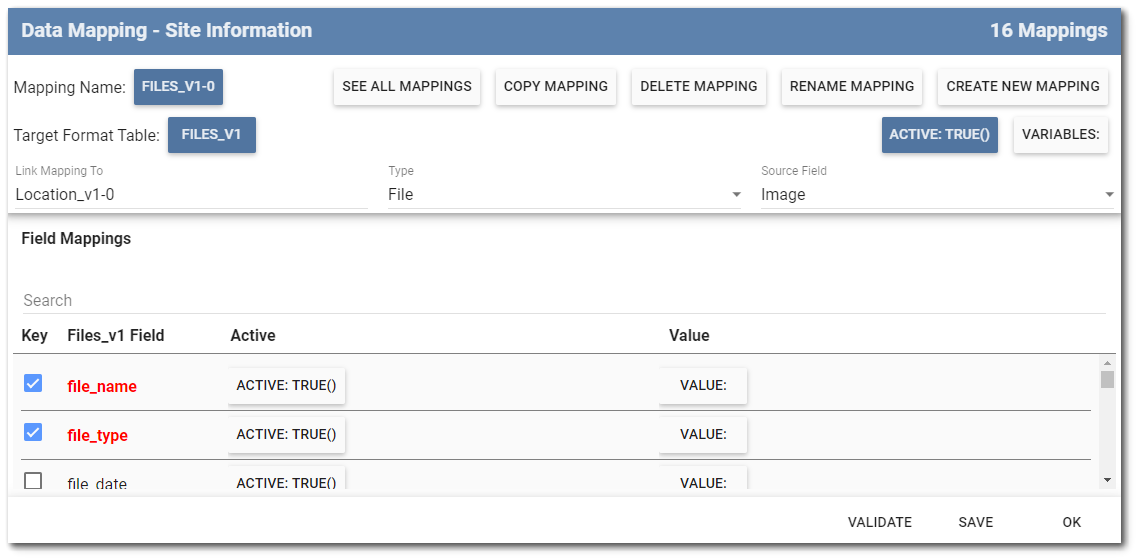
The image below illustrates an example multimedia data mapping where a photo taken, or uploaded into the Image field in a form, is linked to location data from the same form.
File Meta Fields
The following file meta fields can be used as data mappings into the Files_v1 database table for populating information about the photo(s) loaded into Collect Mobile. These file meta fields must be manually typed into the Formula Builder because they are not built into the Collect Formula Builder user interface.
•[#file_type]
•[#file_name]
•[#file_username]
•[#file_number]
oThe [#file_number] meta field is used to auto-increment for each uploaded photo to ensure records are unique and is only compatible with MultiImage and File field types.
•[#file_id]
Files_v1 Mapping
The #file_name and #file_type fields are required in the Files_v1 mapping. To control what the #file_name will be, do the following:
•Supply a Value formula. This could be a concatenation of any information or fields available in the form.
•file_name and file_type default to being Key fields. Remove file_name and file_type from the list of Key fields to allow the Value formula for file_name to succeed.
•It is recommended to append the #file_type to the end of the #file_name concatenation to preserve the file name when the file is uploaded to the database. If a file without the appended #file_type is uploaded to EQuIS, it will download with no content because the file extension was not specified.
Note: Collect does not support populating FILES_v1.CONTENT. It is highly recommended to excludes the FILES_v1.CONTENT mapping when mapping to DT_FILE with any format. |
Geography Mapping
The Geography field type stores data in a JSON array, as shown in the following example:
{"Latitude":31.052925224562387,"Longitude":-40.305775836250611,"Accuracy":0.0,"Altitude":0.0,"AltitudeAccuracy":0.0,"Heading":0.0,"Speed":0.0,"TimeStamp":"2023-10-26T16:38:28.6621183-04:00","IsEmpty":false}
The basic setup steps described above are enough to map geography data in a way that certain formats can pass along to DT_GEOGRAPHY. See the DT_GEOGRAPHY entry in Spatial Data Tables for more information.
Use the JSON function to extract data from this JSON array for mapping individually. For example, the Geography field's Longitude and Latitude values can map to the EDD's Location_v1.x_coord and Location_v1.y_coord fields, respectively, using the following formulas:
•x_coord = JSON([GeographyField],'Longitude')
•y_coord = JSON([GeographyField],'Latitude')