An EQuIS Link Project Template can be configured in EQuIS Enterprise to act as a "virtual" format using the EDP EDD Upload widget to process data. See the Configuring EQuIS Link for Enterprise EDP article for additional information.
Before configuring Link for use in Enterprise, users must first:
1.Create an EQuIS Link Project Template.
2.Map the data from the source file to the desired EQuIS Format.
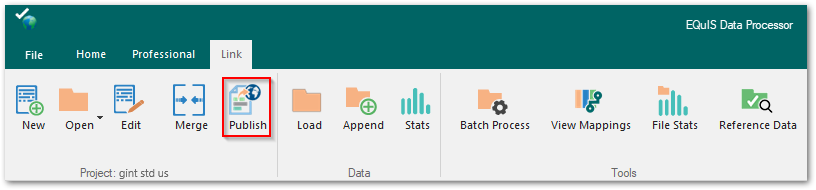
Notes: •This functionality requires an active Link license and Administrator permissions. •The Publish button will be disabled until the following criteria are met: oA user with Administrator permissions is logged in. oEDP is connected to a database. oEDP has access to a Link project. oA format has been selected in EDP. |
How to configure a Link Project Template for use with a specified format in EQuIS Enterprise in Professional EDP:
1.In Professional EDP, load the desired EQuIS Format that corresponds to the Link project.
Note: Attempting to publish non-Enterprise EDP formats (e.g., Alive formats) will result in an error. |
2.In the Link tab, load the desired Link Project file.
3.(Optional) In the Link tab, load the desired Reference Data file.
4.Once the Link project file is loaded, the Publish button will become enabled.
5.Complete the fields in the Publish dialog.
a.The check box "Include reference file" will only be enabled if reference data has been loaded.
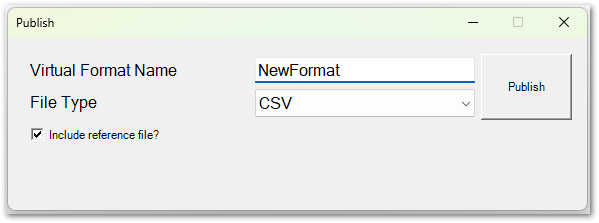
6.Select Publish.
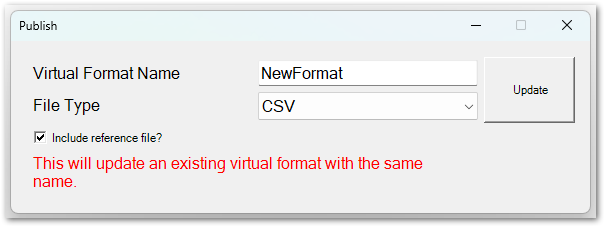
a.If the Virtual Format Name matches an existing published virtual format (matching is not case sensitive), then the "Publish" button text will change to "Update".
Once the steps listed above have been completed, the required files will be committed to DT_FILE and the required records will be added to ST_CONFIG. The virtual format will then be ready for use in Enterprise EDP.