Format Name: Alive_Survey
File Name: Alive_Survey.zip
Source: EQuIS Professional (if and only if the Alive module is selected during the installation of EQuIS Professional)
Export(s): Yes (see section below)
Enumeration File: Not applicable
License Level: Standard
Description: The Alive_Survey format is for transferring existing EQuIS Alive Survey Types between databases.
Installation Instructions: This format is included in the installation of EQuIS Professional when the Alive module is selected during the Custom Setup stage of the process. The format mappings require a licensed Alive Schema applied to the database.
Overview: The Alive_Survey format is for transferring existing EQuIS Alive Survey Types between separate databases. EDDs for this format are not intended to be built from scratch but rather exported via the format export. This format should not be used to modify a survey and import the changes back to the database from which the format was exported. Doing so can cause errors to occur when attempting to use the survey or run a survey report. When transferring a survey between databases, the source and target databases must be updated to the same version of the EQuIS Alive Schema.
Limitations/Assumptions: The following are limitations and assumptions for the Alive_Survey format:
•Survey Type Group
•The Survey Type group includes the reference tables that directly comprise the survey. The export will only include those values directly associated with the selected Survey Type (e.g., only TAXONOMY_CODE values specified in the saved Survey Type for Surveyed Species). The Survey Type EDD export will not include any RT_TAXONOMY records if none are specified in the Survey Type.
•rt_survey_type Section – If any of the group codes are modified in this section, they must also be modified to match in the rt_group and rt_group_member sections.
•rt_parameter Section – Only those parameters that are included in the survey as survey or observation fields will be exported to this section.
•rt_group Section – When using the Survey Definition form, three records are created in RT_GROUP: ASPG:[Survey Type], AOPG:[Survey Type], and AOTG:[Survey Type]. These three groups store the specifications defined for the survey fields (ASPG, or Alive Survey Parameter Group), observation fields (AOPG, or Alive Observation Parameter Group), and surveyed species (AOTG, or Alive Taxonomy Group).
•rt_group_member Section – Members of the ASPG:[Survey Type] and AOPG:[Survey Type] groups will come from rt_parameter. Members of AOTG:[Survey Type] will come from rt_taxonomy.
•rt_taxonomy Section – Taxonomy records included in the exported data will consist of those specified as surveyed species in the Alive Survey Definition form, as well as the taxonomy record of any parent and/or child taxonomy codes for the specified species. The full extent of the taxonomic line as defined via parent/child records will be exported.
•rt_taxonomy_parameter Section – This section will only be populated if there exists at least one rt_taxonomy_parameter record for one or more of the species included as members of the AOTG group.
•Reference Values Group
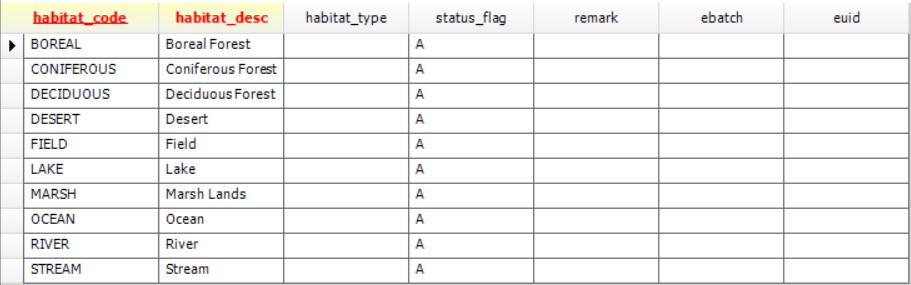
•The Reference Values group includes the data-related reference tables: RT_GENDER, RT_HABITAT, and RT_LIFE_STAGE. The Reference Values group is included for convenience to enable loading reference values to supplement a Survey Type for data collection. See example of RT_HABITAT below:
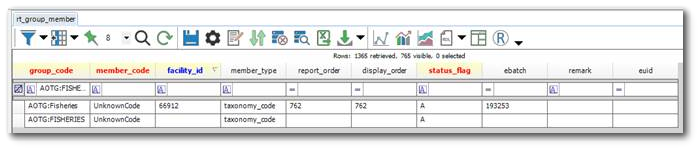
Warning: Surveys created in EQuIS Professional using the Survey Definition Form will not have FACILITY_ID populated in RT_GROUP_MEMBER for the GROUP_CODEs beginning with ‘ASPG:’, ‘AOPG:’ and ‘AOTG:’. Surveys loaded using the Alive_Survey.xsd format will have RT_GROUP_MEMBER.FACILITY_ID populated. If Survey data associated with a facility are loaded to a database which already has Survey data without RT_GROUP_MEMBER.FACILITY_ID populated, this can create two records with the same GROUP_CODE:
This violates the keys on this table and can result in errors when doing the following:
Running Reports System.NullReferenceException: Object reference not set to an instance of an object. at EarthSoft.Reports.ReportGrid.backgroundWorker_DoWork(Object sender, DoWorkEventArgs e)
Opening a Database Format in Professional EDP EarthSoft.EDP.Forms.EddProcessor [(null)] – Unable to read format file (BIRD_VRPC): Elements with the same name and in the same scope must have the same type.
To address errors seen upon loading Alive survey data either with the Professional Alive Survey Definition form or with the Alive_Survey.zip format: 1.Open the RT_GROUP_MEMBER table. 2.Filter GROUP_CODE for 'Contains' the survey type name (e.g., FISHERIES). 3.Sort the table first by MEMBER_CODE, then by GROUP_CODE to easily see the issue. 4.Inspect the FACILITY_ID column for instances where the GROUP_CODE and MEMBER_CODE are the same but one row has a populated FACILITY_ID and one row has a NULL FACILITY_ID. 5.Depending if the Survey should be facility-specific or open to all facilities, delete the unnecessary row. 6.Save the changes to the table. |
Export and Import a Survey Type Between Databases
The following process describes how to export and import an existing EQuIS Alive Survey Type, along with its reference values, between separate databases.
To export an existing Survey Type from a database:
1.Launch Professional and connect to the database from which the survey will be exported.
2.Use the Report Publisher in Professional to publish the Alive_Survey.zip file found in the \Program Files\EarthSoft\EQuIS\Formats\Alive folder.
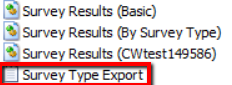
3.Click the Reports button on the Professional Home ribbon. Click the Refresh button and open the published report, which will be named "Survey Type Export".
4.Select the desired parameters and run the report to export the Survey Type:
Survey Type – Select one or more Survey Types.
Include Reference Values? – Select whether to export all related Alive reference values (RT_GENDER, RT_HABITAT, RT_LIFE_STAGE). When "Y" is selected, the tables in the Reference Values section will load successfully together with the Survey Type records.
Save As – Select the type of file format to which the EDD will be saved. (Note that saving as a .zip may be the most convenient).
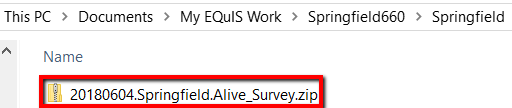
5.Run the report, and the new folder will automatically be stored in a subfolder of \Documents\My EQuIS Work\[database name]\[facility name]. See example below:
To import the Survey Type into another database:
1.Open Professional and connect to the EQuIS database where the exported Survey Type (created in Step 5) will be loaded.
2.Open EDP, click on Format (on the Home ribbon), and select the Alive_Survey.zip file (typically located in \Program Files\EarthSoft\EQuIS\Formats\Alive).
3.Click on EDD (on the Home ribbon) and select the exported Survey Type from Step 5 (e.g., 20180604.Springfield.Alive_Survey.zip).
4.Load the survey into the database using the Create and Commit (Insert and Merge is recommended) process. The new Survey Type will now be available in the Survey Type drop-down in the Alive Survey Definition Form, as well as the DB Format tool.
Note: The Alive_Survey.zip format file is not meant to be opened in EDGE. |
EDD Sections and Database Mappings: The Alive_Survey format contains 8 sections that are named according to the reference tables to which they map in the database.
•rt_gender
•rt_habitat
•rt_life_stage
•rt_parameter
•rt_param_type
•rt_taxonomy
•rt_taxonomy_param_type
•rt_taxonomy_parameter
Exports: The data returned will be automatically filtered by the facility to which the user is connected, as well as by the parameters selected prior to running the report. See the Exports from Professional EDP article for more information about running exports.
Export |
Format Section |
Source Table(s) |
|---|---|---|
Survey Type Export |
rt_survey_type |
RT_SURVEY_TYPE |
rt_parameter |
RT_GROUP RT_GROUP_MEMBER RT_PARAMETER RT_SURVEY_TYPE |
|
rt_param_type |
RT_GROUP RT_GROUP_MEMBER RT_PARAM_TYPE RT_PARAMETER RT_SURVEY_TYPE |
|
rt_group |
RT_GROUP RT_SURVEY_TYPE |
|
rt_group_member |
RT_GROUP RT_GROUP_MEMBER RT_SURVEY_TYPE |
|
rt_taxonomy |
RT_GROUP_MEMBER RT_SURVEY_TYPE RT_TAXONOMY |
|
rt_taxonomy_parameter |
RT_GROUP_MEMBER RT_SURVEY_TYPE RT_TAXONOMY RT_TAXONOMY_PARAMETER |
|
rt_taxonomy_param_type |
RT_GROUP_MEMBER RT_SURVEY_TYPE RT_TAXONOMY RT_TAXONOMY_PARAM_TYPE RT_TAXONOMY_PARAMETER |
|
rt_lookup |
RT_GROUP RT_GROUP_MEMBER RT_LOOKUP RT_PARAMETER RT_SURVEY_TYPE |
|
rt_gender |
RT_GENDER |
|
rt_habitat |
RT_HABITAT |
|
rt_life_stage |
RT_LIFE_STAGE |